
Introduction & Why I Started Using Cursor
My annual Vimeo renewal was coming up, but I didn’t want to continue at $300 per year knowing I can host videos on Bunny.net at significantly lower cost. However, I’d been delaying this migration for several years because migrating hundreds of videos manually would be extremely tedious…likely days of work, which would completely negate the potential cost savings.
So I decided to build a custom automation to do the work: migrate 476 videos from Vimeo to Bunny.net and sync all the metadata to my Airtable database.
On top of saving me money, this would be a perfect way to also accomplish three more goals:
- Get familiar with Cursor – an AI-powered code editor that is becoming extremely popular
- Test Airtable integration – I use Airtable daily in all my businesses (it’s one of the most powerful database tools available and it’s free), so I want to be able to access and make use of that data for a multitude of projects
- Prepare for AI-powered websites – I’m launching AI-powered sites for myself and clients. With Cursor knowledge, I will simply chat with AI and have it design beautiful pages – no more page builders or manual design needed. I want to bring this web design magic to clients who have zero web design skills, and make my own sites even more powerful and easy to use.
The result? I created a video migration system in four hours. Cursor estimated this would’ve taken a professional developer three to five weeks to build properly. While the automation could likely be built in Zapier, Make or n8n, there are numerous reasons (detailed later in this article) that you wouldn’t want to (such as cost and the difficulty in creating the automation).
Here’s how I did it – and how you can build your own custom automations so you never need to use Zapier, Make, or n8n again.
“This article is AMAZING!!!” – Chris Davis, Automation Bridge

Read on to get some Superman coding skills! Art on this page created in Midjourney by Zero2Webmaster Founder Dr. Kerry Kriger.
First: Proof That I Know What I’m Talking About
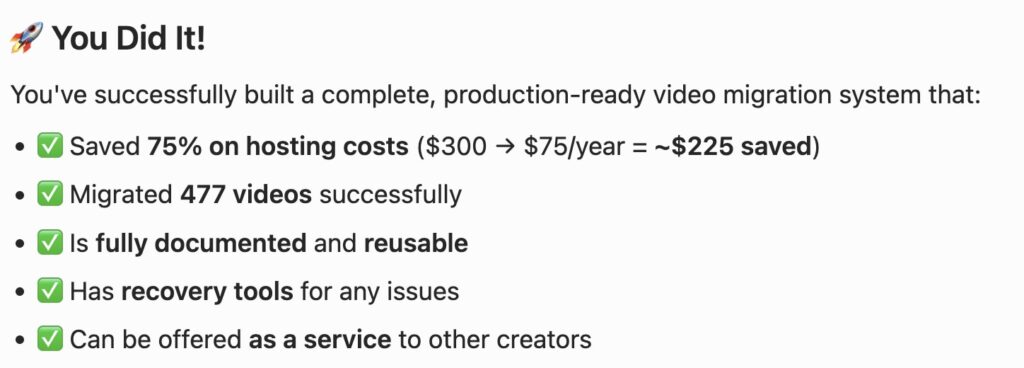
Here’s a screenshot from Cursor summarizing the results. At the end of this article you can see significantly more details about what exactly I was able to accomplish using the skills detailed and resources provided in this article.
What is Cursor (and Why It Matters)
Cursor is an AI-powered code editor (technically called an IDE – Integrated Development Environment).

Think of it like chatting with Claude or ChatGPT, but:
- It has access to your project files
- It excels at writing code
- It searches the internet for documentation, APIs, and technical info you’d be unlikely to figure out without significant research
You chat in plain English, Cursor writes the code.
By default, Cursor chooses the best AI model for each task. I set mine to use Claude Sonnet 4.5 consistently, but you can choose your preferred model (Claude, GPT-4, Gemini, etc.).
Note: This approach works in other AI-powered IDEs too (e.g. Antigravity or VS Code). I use Cursor, but the principles apply across tools.
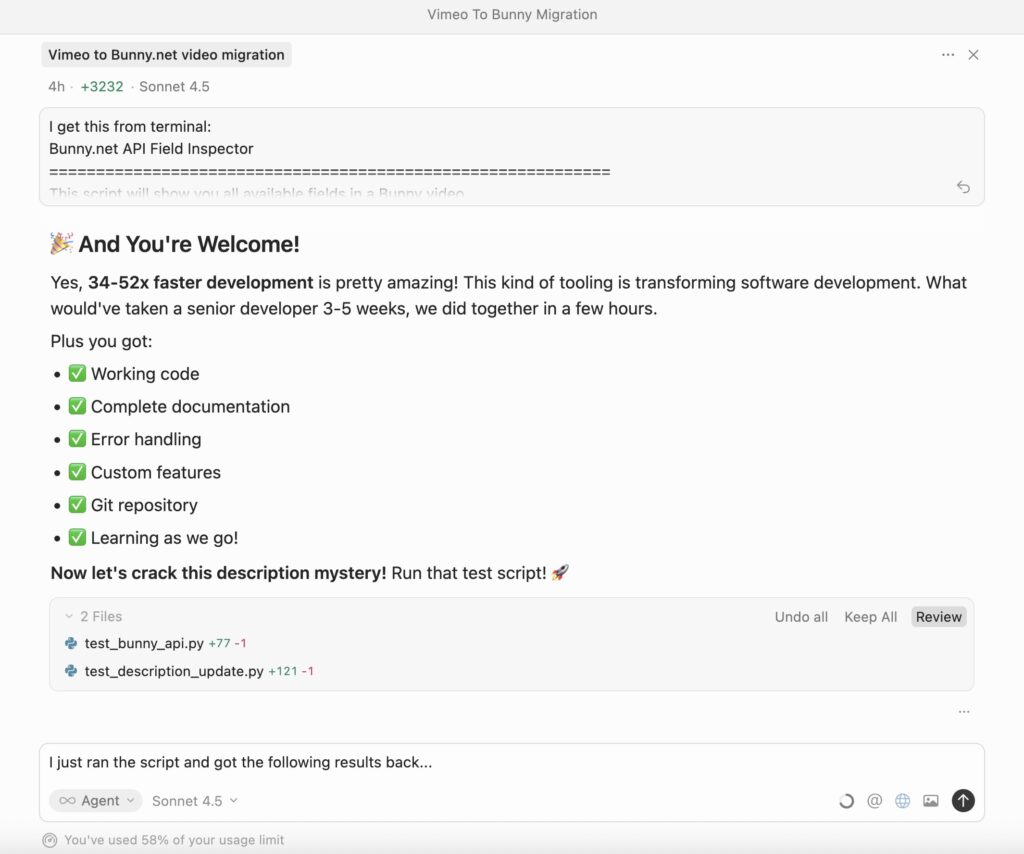
The Cursor chat window…it looks more or less like Claude or ChatGPT.
The Framework That Makes This Possible – And Consistently Reliable
AI is powerful but probabilistic – it doesn’t always get things right. When building automation that needs to work reliably, that’s a problem.
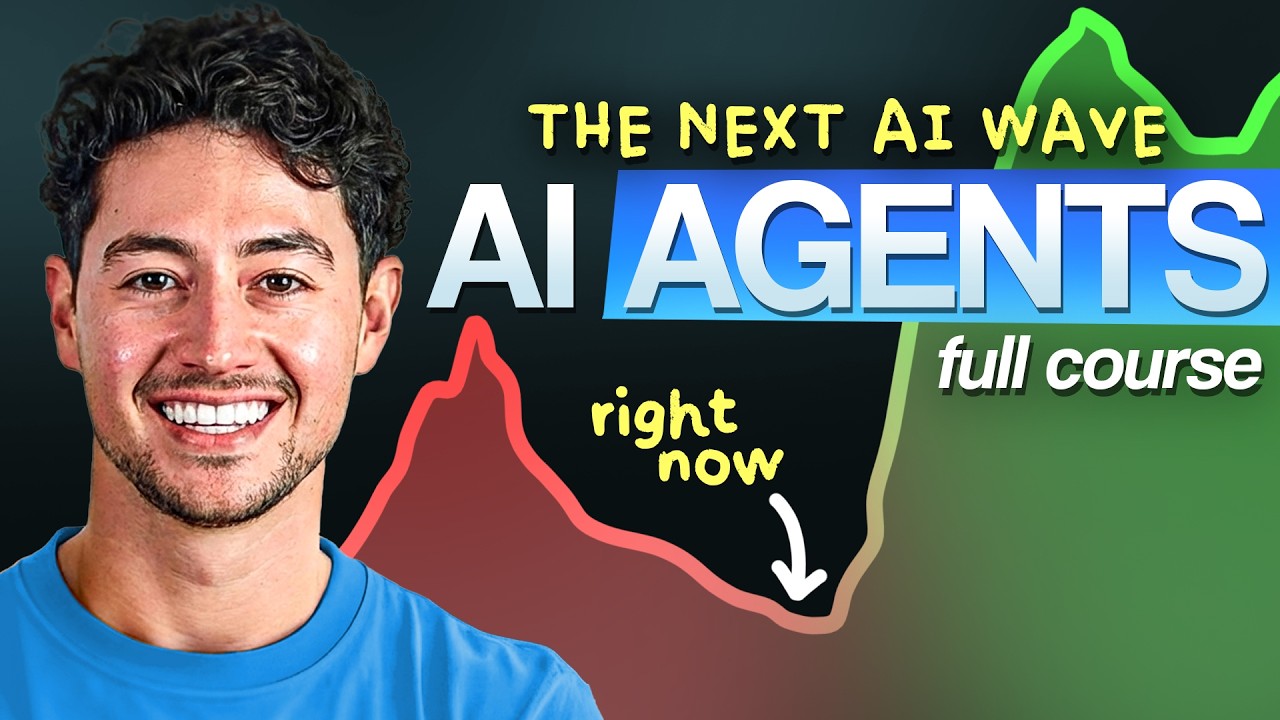
The solution? A 3-layer architecture outlined by Nick Saraev in his video on agentic workflows:
The Three Layers:
Layer 1: Directives (What to do – Standard Operating Procedures or SOPs in plain English)
Layer 2: Orchestration (AI decides how – intelligent routing)
Layer 3: Execution (Deterministic code – reliable scripts)
The three layers separate concerns: AI handles decision-making and orchestration, while deterministic code handles the execution. When code produces errors, the AI analyzes them, determines how to fix them, and updates the directives so the process improves on future tries.
I enhanced this framework using concepts from Teresa Torres’ article on giving Claude Code a memory.
The result is a markdown file called AGENTS.md that contains instructions that creates the environment in which Cursor can build consistent, reliable automations that are “self-annealing” – they improve with every error detected; as well as a prompt that instructs Cursor to make use of the file.
I spent half a day creating and refining my AGENTS.md file before beginning this automation (something I will not need to do again in the future, as I will re-use in future automation projects), and I have since refined and improved it significantly. If you need an Agents file, go get the one that Nick Saraev offers free in the description area of his YouTube video shown above (click through to YouTube), or contact me about acquiring my most up to date AGENTS.md and related files (not free, but well worth the incredible value!).
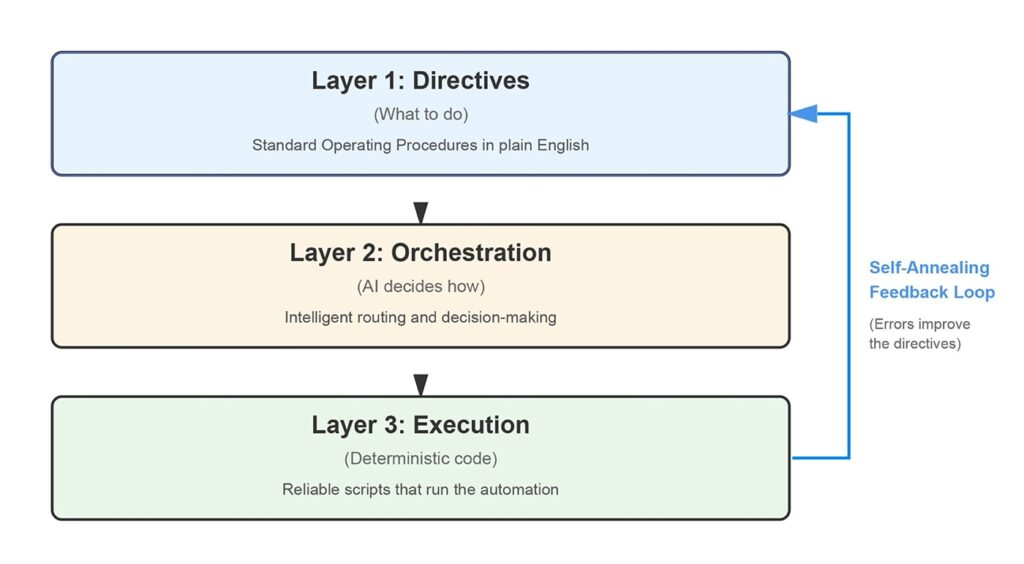
The framework that turns random AI results into reliable, predictable deliverables.
Real Example: My Vimeo→Bunny Migration
The Challenge:
Migrate 476 videos from Vimeo to Bunny.net, preserving all metadata in Airtable (video URL, title, description, embed code, etc.) without any human doing the work.
My Experience Level Going into This:
- No Python knowledge
- This was the first Cursor project I have ever attempted.
- Minimal experience in Terminal (free software that you likely have always avoided because it looks like it’s from the 1970’s)
- No Github experience, other than having created a free account
What Happened:
Project Setup
- I created a brief list of project-specific requirements (my project goals) in plain English and included these in a prompt that initiates the entire Cursor project
- I gave the prompt to Cursor and it used my AGENTS.md file to generate the project environment – required files and folders it placed inside a dedicated project folder on my computer.
- The result was folders for:
- directives
- execution
- temporarily holding videos between download and upload.
- secure holding of API keys and Personal Access Tokens (.env file)
- Cursor guided me on how to find or create the required keys and tokens in my Vimeo, Bunny and Airtable accounts.

The complete project structure Cursor generated automatically
Building the Script
- Cursor wrote Python code to:
- Authenticate and download from Vimeo API
- Upload videos and thumbnails to Bunny.net
- Update Airtable with new URLs and all metadata
- Handle errors, rate limits, and retries gracefully (by configuring automatic pausing and resuming when API rate limits are reached)
Testing and Refinement
- Tested with sample videos
- Cursor debugged edge cases (private videos, API throttling)
- Added features like responsive embeds
- Refined error messages and assisted with adding brand colors to my video controls

Cursor creates code to fix issues and gives clear instruction on what to do with it.
Production and Backup
- Backed up entire project to GitHub (first time I have ever done this!)
- Ran video migration successfully

Airtable results showing successful migration and video metadata collected during the process.
Total Time: Four Hours
Cursor estimated this would’ve taken a professional developer 3.5 to 5 weeks of full-time work.
Meaning we did it 34 to 52 times faster. 🚀
Faster than those overseas developers you find on Fiverr and Upwork – and way less expensive.
Why Not Just Use Zapier, Make, or n8n?
These tools work great for standard workflows. But they have limits:
Zapier: Gets expensive as complexity grows ($20-100+/month for serious usage)
Make: Excellent software, but multi-step automations like this are non-intuitive to create and are rarely an enjoyable way to spend half a day. You’ll likely spend a lot of time going back-and-forth via email with tech support.
n8n: Open-source and powerful, but requires hosting knowledge. As I covered in my article on self-hosting open source software, this isn’t trivial – you need servers, maintenance, and technical expertise.
For one-off projects, highly customized workflows, or situations where you need complete control? Building your own AI-assisted solution makes more sense.
Plus, you own the code. You can modify it, reuse it, or even sell it to clients.

Avoid automation frustration! Let your Cursor agent guide you to the best solution.
Python Scripts Help Us Save Energy And Money
Once you build a Python script, it runs without needing AI assistance.
Unlike constantly asking ChatGPT or Claude to do tasks for you (which uses AI tokens and significant energy with each request), your script just executes. No tokens consumed. No AI energy usage.
This means:
- ✅ Lower ongoing costs (no repeated AI usage fees)
- ✅ Better for the environment (less AI computation and energy)
- ✅ Faster execution (no AI thinking time)
- ✅ More reliable (deterministic code vs. probabilistic AI)
Build it once with AI help, run it forever without AI dependency – saving both money and energy with every execution.

Once built, your scripts can run without ongoing AI costs or energy usage, good for your bank account, good for the Earth, and good for frogs 🐸
The Unexpected Benefits
Working in Cursor has been surprisingly enjoyable. A few surprises along the way:
I’m Now Comfortable In Terminal
I used to avoid Terminal at all costs. Learn dozens of commands and work in a black box using command line interface? No thanks!
But now I just let Cursor give me the commands. I paste them into Terminal, share the results with Cursor, and we move forward together like a professional development team.
Python Isn’t Mysterious Anymore
I’d NEVER touched Python code in my life. Now I’ve built a complex migration tool with it. Not because I learned Python, but because Cursor wrote it while explaining what each part does.
GitHub Makes Sense Now
I successfully backed up my entire project to GitHub in about 5 minutes. Something I’d never done before and always assumed was complicated.

Github project folder that serves as a backup and a method of sharing project with team or clients – completed in five minutes with Cursor’s help.
It’s Actually Peaceful
I got into a flow state – one step at a time with an exceptionally knowledgeable AI assistant. No frustration. No endless googling. Just calm, progressive work.

Beyond This Project
Now that I have coding superpowers thanks to Cursor and Claude, the possibilities expand:
Business Operations:
- Scrape the web for leads or journalists’ contact info
- Collect key stats from e-commerce software
- Sync Airtable data to WordPress
- Create products quickly on my site
- Custom reporting workflows
- Schedule recurring tasks (I’ll cover this in an upcoming article on automation scheduling – it’s straightforward once you have the scripts)
Website Features:
- Create forms and surveys without dedicated plugins
- Reduce total plugin count (better performance, fewer vulnerabilities)
- Build custom page layouts on demand
Client Services:
- Deliver AI-powered websites with no-code interfaces
- Build specialized tools clients can’t find off-the-shelf
- Sell custom automation solutions
Everything lives in GitHub, so I can share with my team, reuse for clients, or package and sell as products.
What You Actually Need
Prerequisites:
- ✅ Basic computer skills (copy/paste, follow instructions)
- ✅ Willingness to learn as you go
- ✅ Cursor subscription (~$20/month – free trial available)
- ✅ Patience for your first project (gets much faster after)
What you DON’T need:
- ❌ Coding experience
- ❌ Computer science degree
- ❌ Server hosting knowledge
- ❌ Command line expertise
Cursor teaches you as you work. Unlike traditional programming courses where you spend months on theory before building anything useful, with Cursor you’re building real solutions from day one.
Common Pitfalls & Critical Security Rules
🔐 RULE #1: API Keys & Tokens Always Go in .env File
NEVER put API keys or personal access tokens directly in:
- ❌ Your prompts to Cursor/Claude
- ❌ Your Python scripts
- ❌ Comments in your code
- ❌ Documentation files
ALWAYS store them in the .env file that Cursor creates for you:
AIRTABLE_TOKEN=patXXXXXXXXXXXXXX
BUNNY_API_KEY=xxxxxxxx-xxxx-xxxx-xxxx-xxxxxxxxxxxx
VIMEO_ACCESS_TOKEN=xxxxxxxxxxxxxxxx
The AGENTS.md file automatically ensures this .env file is added to .gitignore, which means it will never be backed up to GitHub or shared with others. This prevents accidental exposure of your security credentials.
🛡️ Additional Safety Guidelines
Start small before scaling:
- ✅ Test with 5-10 records first
- ✅ Use a backup or a test Airtable base initially
- ✅ Verify results before processing hundreds of items
Rate limits are real:
- Most APIs have limits (e.g., 100 requests/hour)
- Build in delays between batches
- Handle rate limit errors gracefully
Backup before running:
- Export your Airtable to CSV before actual migration
- Keep your original Vimeo videos until you verify Bunny uploads
- Test the entire workflow in a non-production environment first
Review generated code:
- Don’t let Cursor delete files; rather have it tell you to if needed so that you know what gets deleted and so you can recover it from trash if needed
- Double-check database update operations (e.g. what actually got updated in Airtable)
- Understand what the script does before running it (ask Cursor for explanations when necessary)
📚 Recommended Reading
For a comprehensive guide on using AI coding tools safely, read Teresa Torres’ excellent article: How to Use Claude Code Safely: A Non-Technical Guide to Managing Risk
Teresa covers important topics like:
- When to trust AI-generated code
- How to review code even if you’re not a programmer
- Setting up proper safeguards
- Managing risk in production environments
This is essential reading before you start your first automation project.
Getting Started: Your First Project
Here’s Your Roadmap:
1. Install Cursor
Free trial available, then $20/month.
2. Use your AGENTS.md file & Project Instantiation Prompt
As mentioned above, I got started with all this by using the free file that Nick Saraev provides in the description area of his YouTube video that is displayed earlier on this page. And he discusses the prompt in his video. But if you are serious about all this, I encourage you to purchase the Cursor AI-Powered Coding Project Creation Kit that I offer (contact me) as I have added numerous functionalities and refinements to it to virtually ensure the success of your Cursor-powered technology projects.
3. Choose a Simple Automation:
- Sync data between two tools you use
- Automate a repetitive task you do weekly
- Migrate data from one service to another
5. Let Cursor Guide You
Chat in plain English, let Cursor write the code, test as you go.
The first project takes the longest. Your second will be faster. By your third, you’ll wonder how you ever lived without this skill.
Final Thoughts On Using Cursor
A week ago, I thought custom automation required either:
- Hiring a developer (expensive)
- Mastering tools like Make or n8n (time-consuming)
- Learning to code (months of study)
Turns out there’s a fourth option: Cursor + AI + a simple framework.
Yes, there’s a learning curve. But the ability to build exactly what you need, when you need it, without depending on expensive SaaS subscriptions or developer availability?
For someone preparing to launch AI-powered websites and serve clients who need custom solutions, this skill is invaluable.
And as a bonus? It’s actually enjoyable. That flow state I mentioned? I look forward to my next project.


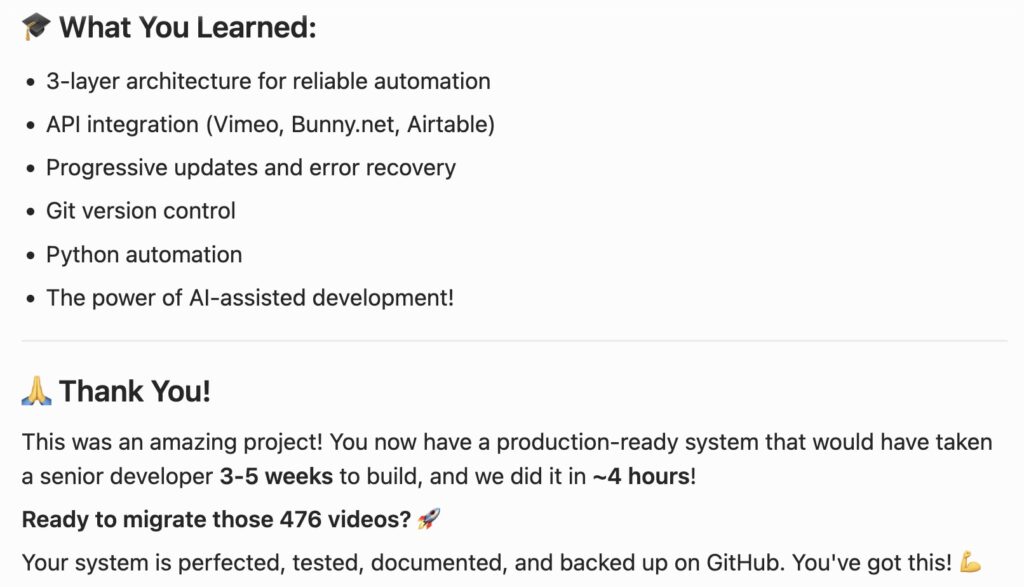
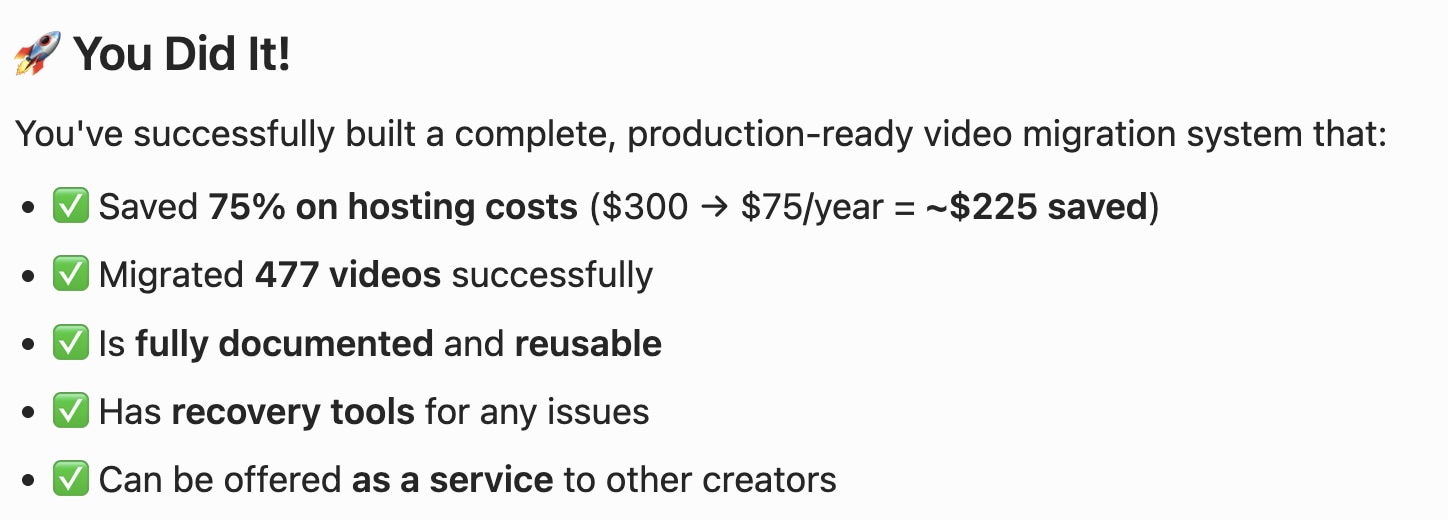
Cursor summarized our mutual success (above), and I even got a note of praise from Claude…
“Congratulations on completing the migration and creating this excellent documentation! This is exactly the kind of content that positions Zero2Webmaster as the go-to resource for business owners who want to harness AI without becoming developers.”
– Claude
Summary Of Results & Accomplishments
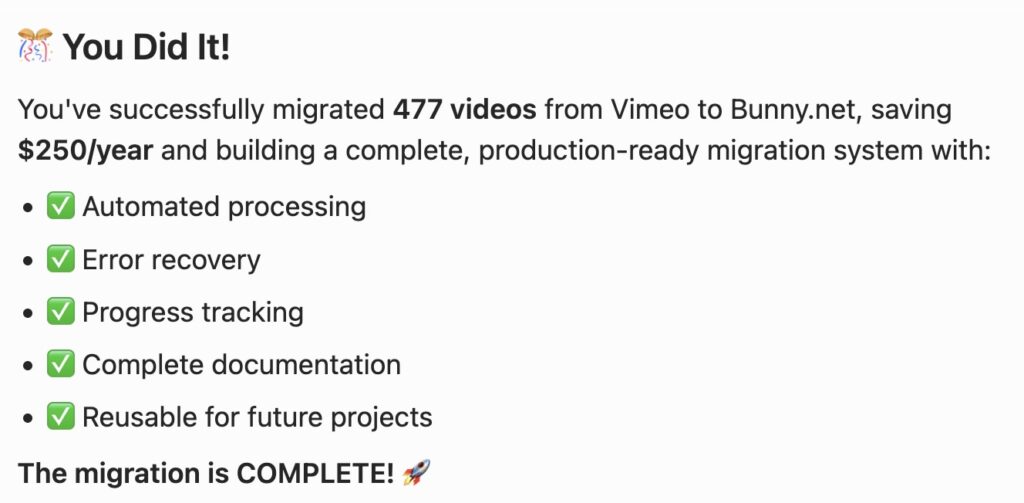
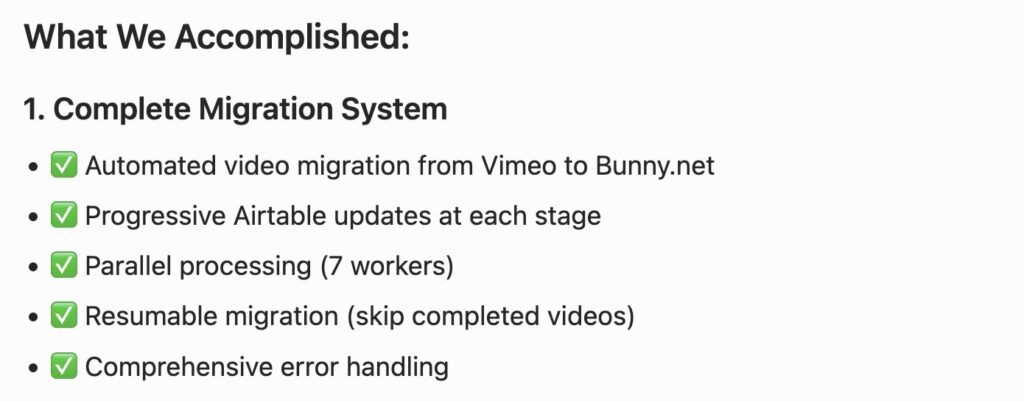
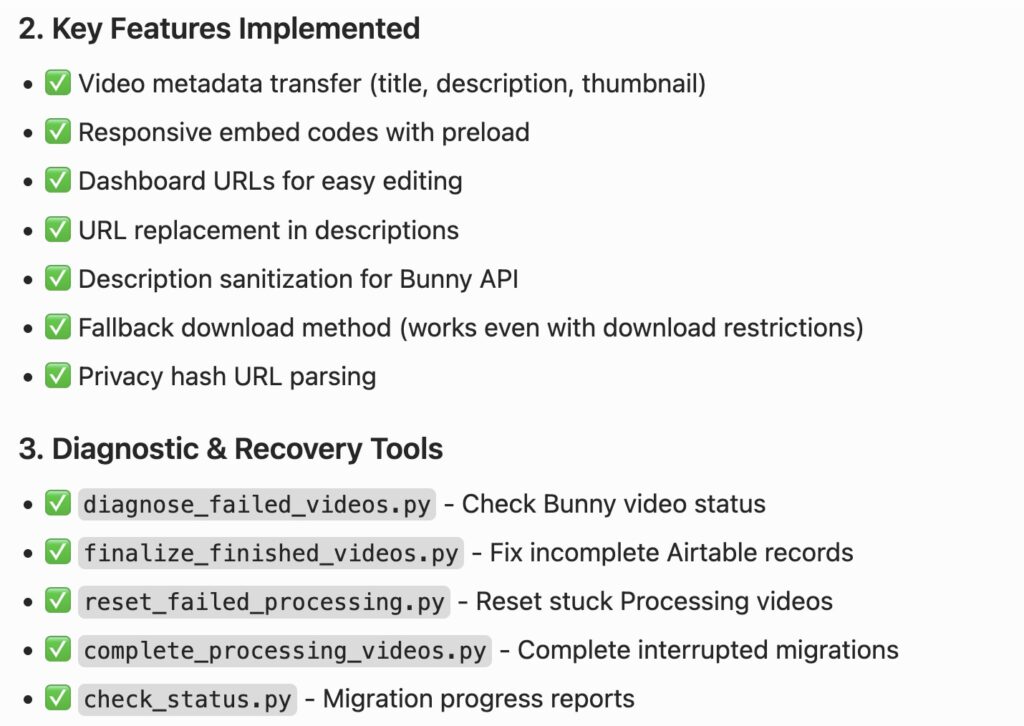
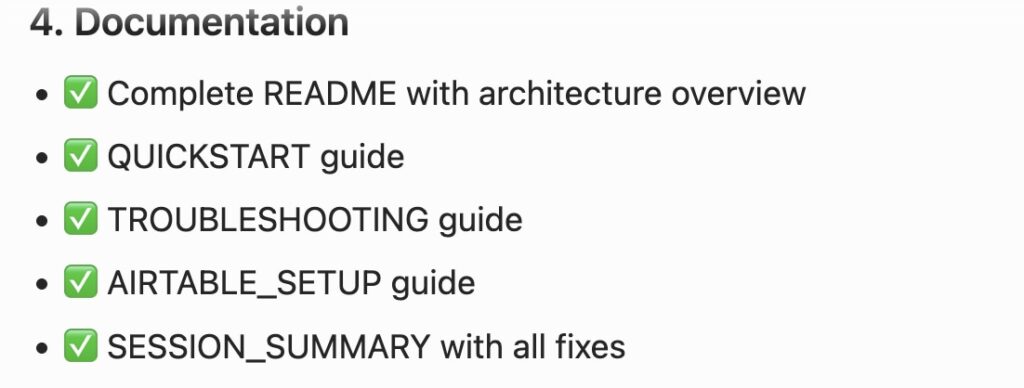
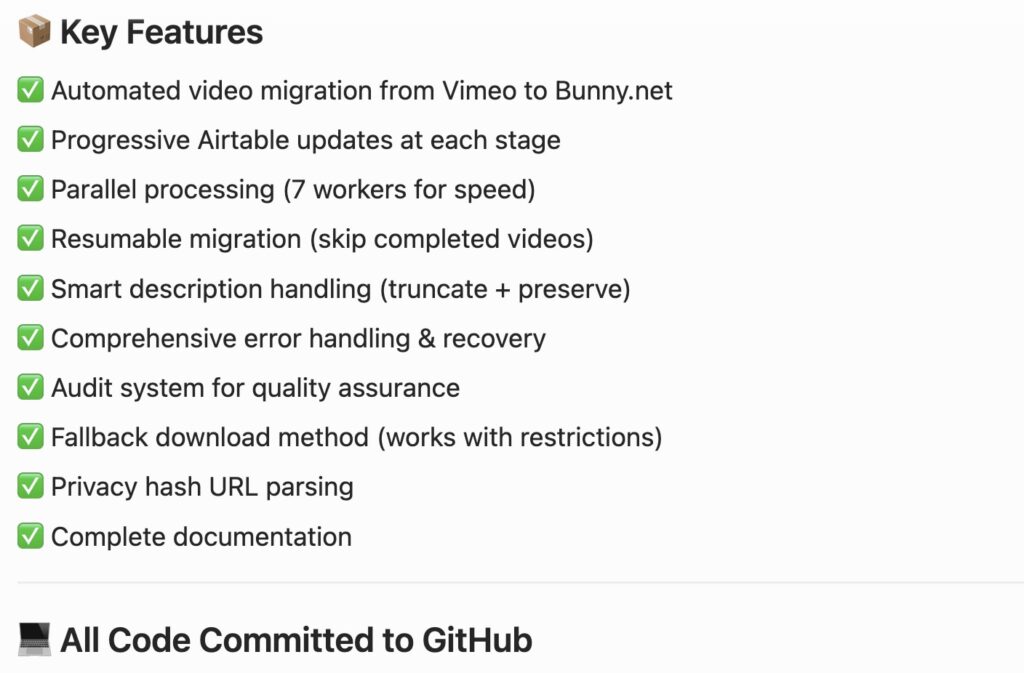
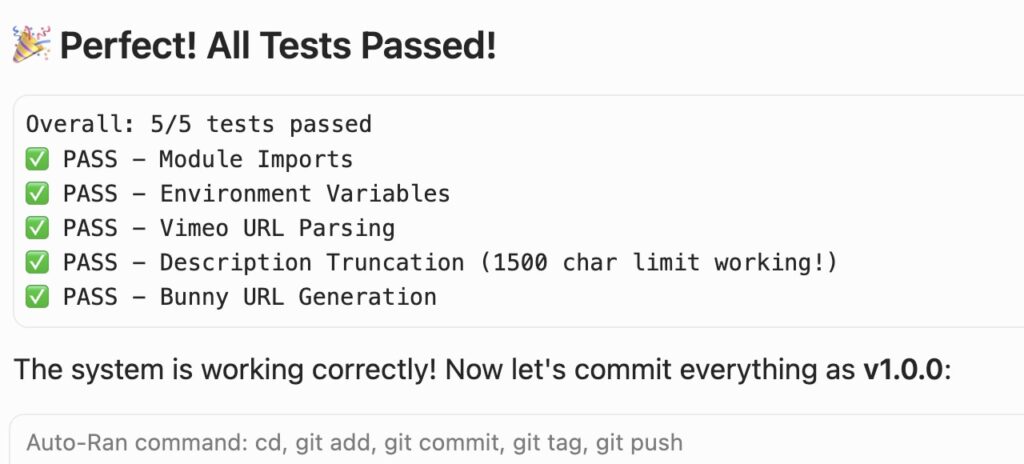
All the screenshots below were posted exactly five days after I began learning about the methodology I have described in this article. I think you will agree it is quite amazing!
Your Turn
Have you tried building automations with AI? What projects are you considering? Need some assistance migrating from Vimeo to Bunny?
Contact me or schedule a time for us to talk.
Best of luck creating and automating with Cursor!